
Connect OpenAI & set up conversion tracking
This guide walks you through linking the OpenAI Conversions API to FunnelTrack and routing your conversion events server-side — so you can measure and optimize campaigns running against AI-powered search.
- •Admin access to your OpenAI Ads Manager account
- •A data source (pixel) already created under Tools → Conversions
- •The FunnelTrack pixel and the OpenAI base pixel deployed on every page of your funnel
- •About 10 minutes
Connecting to OpenAI
Link FunnelTrack to your OpenAI data source so we can send conversions server-side via the Conversions API.
Find your Pixel ID
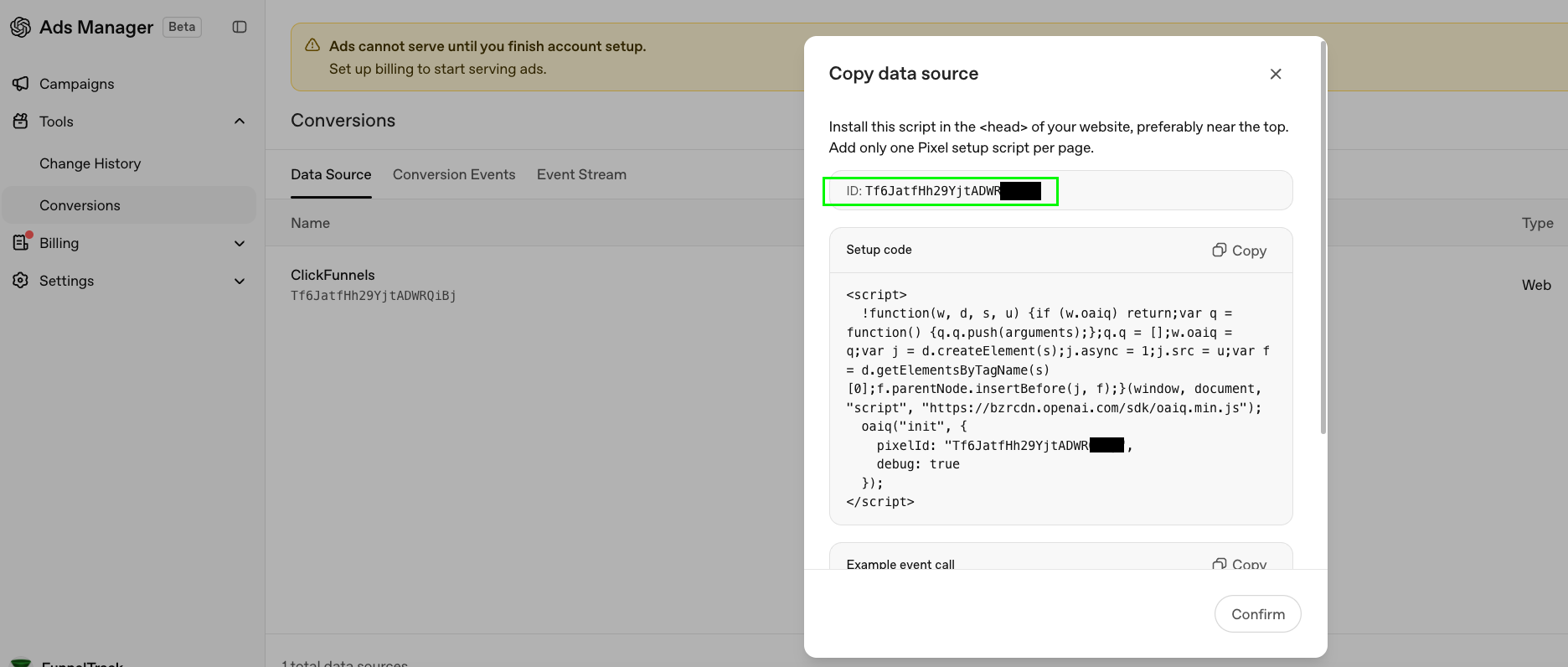
In OpenAI Ads Manager, go to Tools → Conversions → Data Source and open your data source. Click the row to reveal the Copy data source panel — the ID at the top is your Pixel ID. Copy it and paste it into the Pixel ID field on the OpenAI Conversions API integration page in FunnelTrack.
Generate a conversion key (token)
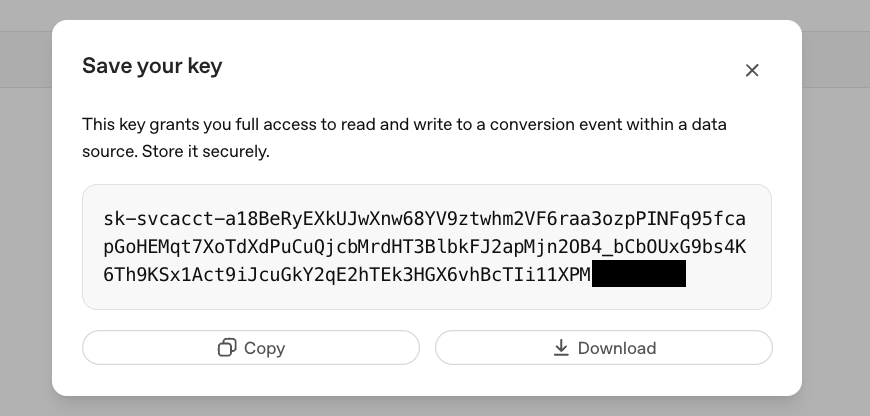
Still on the Conversions page, click Manage conversion keys in the top-right, then Create new key. Name it FunnelTrackso future-you remembers what it's for.

OpenAI will display the key once in a Save your key modal. Copy it immediately— OpenAI won't show it again. Paste the token into the API Key field in FunnelTrack.
Click Connect in FunnelTrack
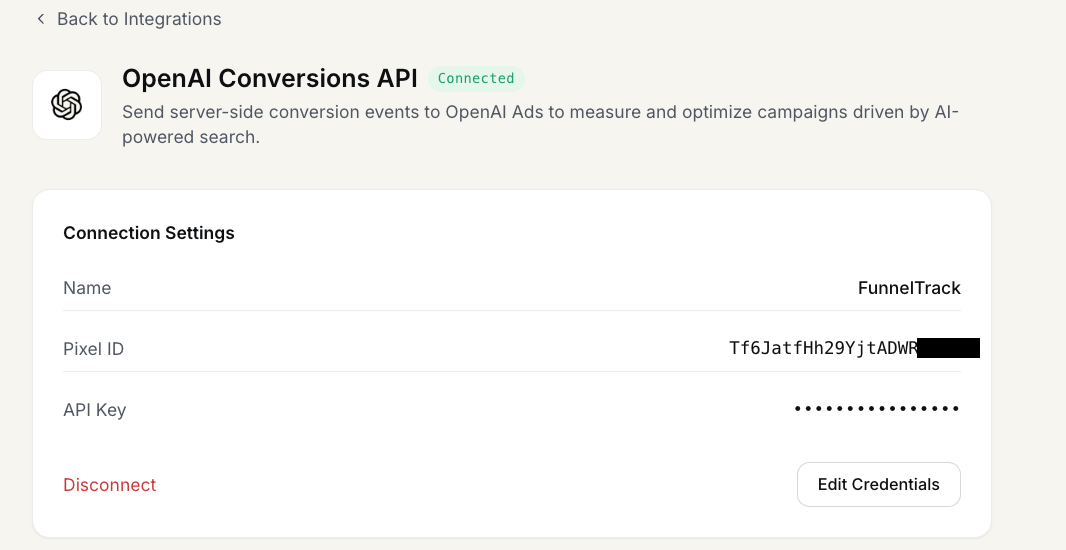
With Pixel ID and API Key filled in, click Connect. Your OpenAI Conversions API destination is now wired up — next we'll route events to it.
Setting up CAPI events
Route the events FunnelTrack already captures to the conversions you've created in OpenAI.
Deploy the FunnelTrack pixel
Make sure the FunnelTrack pixel is deployed on every page of your website and any landing pages. You'll find the script and a verification status in the Pixel section of your FunnelTrack account.
Deploy your OpenAI base pixel
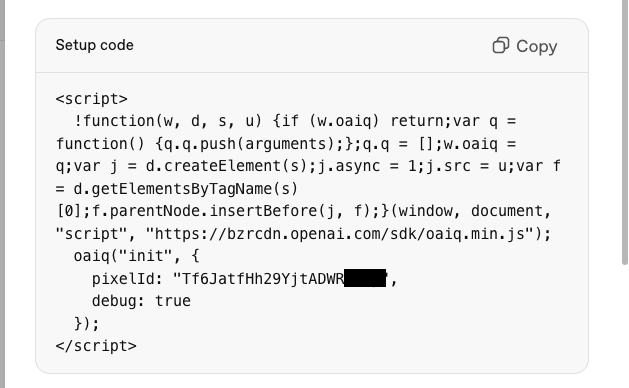
OpenAI also needs its own client-side base pixel on every page of your funnel to track ad clicks alongside the server-side conversions FunnelTrack sends. The setup code is shown right below the Pixel ID in the Copy data source panel — paste it into the <head> of every page (or via your tag manager).
Enable an event template (or create a custom one)
In FunnelTrack, open the source you want to route to OpenAI (e.g., ClickFunnels → OpenAI Conversions API). Toggle on a recommended event template, or click + Add More Events to create a custom one.
Map the event name to your OpenAI conversion
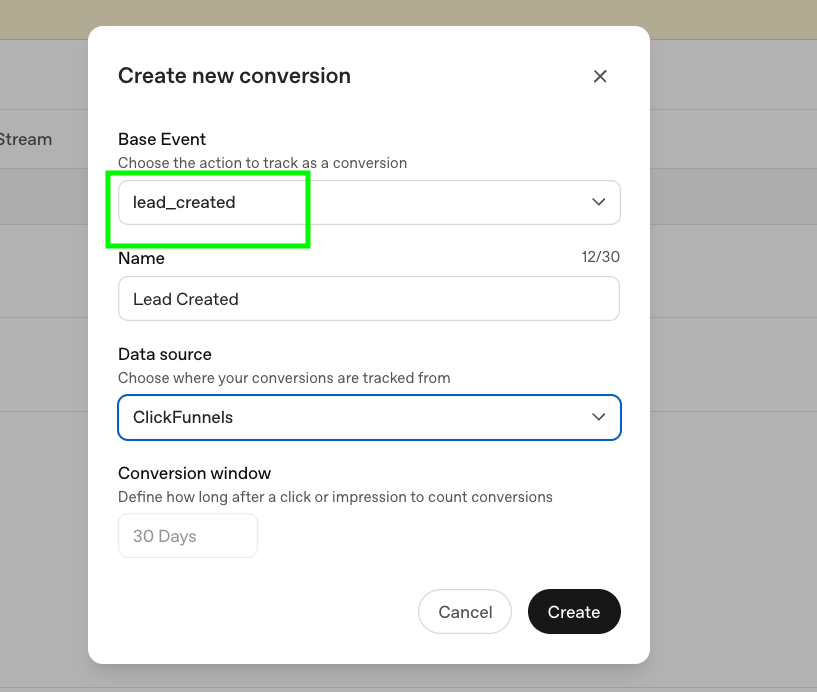
On the right side of each enabled event card, pick the OpenAI event name from the dropdown — it must match the Base Event of the conversion you created in OpenAI (e.g., lead_created, order_created, page_viewed). FunnelTrack's OpenAI dropdown uses the same snake_case event names OpenAI does, so the values line up one-to-one.
(Optional) Add custom parameters & firing conditions
Attach custom event parameters or gate events behind specific conditions (e.g., only fire order_created when the order value is over $100). Click + Add Custom Parameters or + Add Condition on the event card.
Save your changes
Click Save Configuration at the top of the routing page. Your event map is now live — every matching source event will be sent to OpenAI from this moment on.
Test & verify
Trigger the action on your website (submit the form, complete the checkout, etc.). Then open Event Delivery Log in FunnelTrack. You should see two rows for each event: an IN row showing FunnelTrack received the source event, and an OUT row showing the dispatch to OpenAI marked delivered.
deliveredin the FunnelTrack Event Delivery Log, the data is in OpenAI's hands — give it a little time before you double-check the conversion count in Ads Manager.Need a hand?
If anything in this guide didn't match what you're seeing in OpenAI Ads Manager or FunnelTrack, open a support ticket in your dashboard and we'll get you sorted.