
Connect Calendly & set up booking tracking
FunnelTrack captures Calendly bookings, cancellations, and no-shows server-side via Calendly's API and stitches each one back to the visitor's ad session through the FunnelTrack pixel — so the booking lead you fire to Meta, Google, TikTok, and the rest carries the original click ID, identity data, and session context.
- •An embedded Calendly scheduler on the same page as your FunnelTrack pixel (inline embed or popup widget — not a link out to
calendly.com) - •A post-booking redirectto a confirmation / thank-you page on your site, with event details appended to the URL — Calendly's “Pass event details to your redirected page” option does this for you
- •The FunnelTrack pixel deployed on every page of your site — plus any third-party landing pages where the Calendly embed lives — and especially on the confirmation page
- •Admin access to your Calendly account (to generate a Personal Access Token)
- •At least one connected destination (Meta CAPI, Google Ads, GA4, etc.)
- •About 10 minutes
calendly.comcan't run our pixel — only embeds on your own domains can.Setup
Embed Calendly on a page with the pixel, configure the post-booking redirect, then wire Calendly to FunnelTrack with a Personal Access Token.
Deploy the FunnelTrack pixel
From the Pixelsection of FunnelTrack, copy your pixel snippet and deploy it on every page of your site — including any third-party landing pages where you've embedded Calendly, and especially on the post-booking confirmation page.
event_source_url / page_location we send to Meta, GA4, TikTok, and the rest — and Calendly appends booking details (event type, invitee email, answers) as query params, which makes the conversion look even richer in your ad reporting.Embed Calendly on your site
Use Calendly's Inline Embed or Popup Widget on the page where you want to capture bookings (lead-gen landing pages, pricing pages, etc.). The page must have the FunnelTrack pixel loaded.
calendly.com/your-handleis a hard break in attribution — the FunnelTrack pixel can't run on Calendly's domain, so we lose the session and can't tie the booking to an ad click. Always embed on your own page instead.Configure the post-booking redirect
In Calendly, open the event type and go to Booking page settings → Confirmation page. Set After booking to Redirect to an external site, paste your confirmation / thank-you URL, and tick Pass event details to your redirected page.
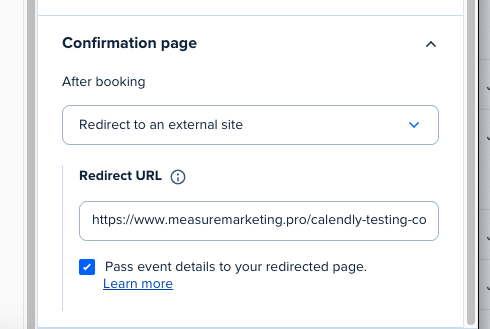
?assigned_to=…&event_type_uuid=…&invitee_email=…. The FunnelTrack pixel captures that full URL as a page_view, and the dispatcher prefers it as the destination's event source URL over anything else in the session.Generate a Calendly Personal Access Token
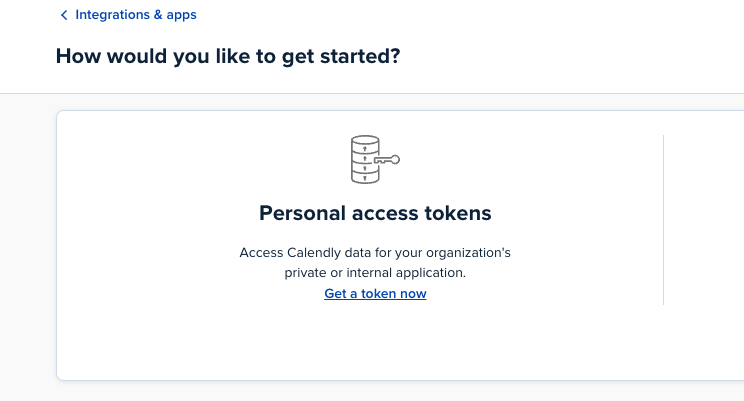
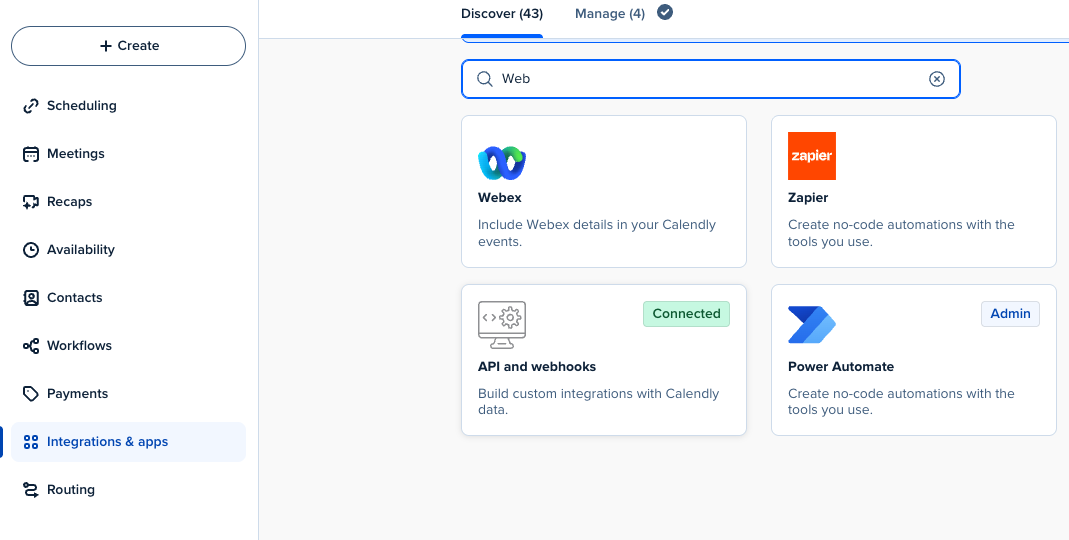
In Calendly, go to Integrations & apps → API and webhooks → Personal access tokens and click Get a token now.
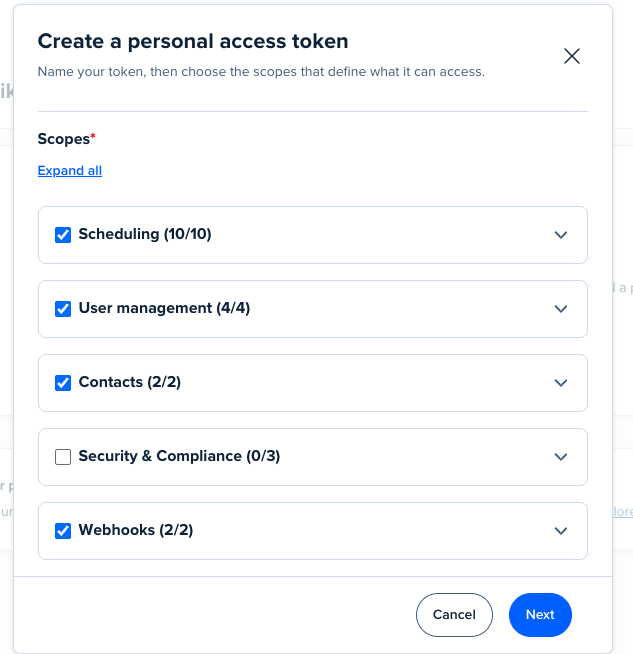
Name the token, then in the Scopes step enable Scheduling, User management, Contacts, and Webhooks. Leave Security & Compliance off.
Paste the token into FunnelTrack
In FunnelTrack, open Integrations → Sources → Calendly and paste the PAT into the Calendly Personal Access Token field. Click Connect Calendly.
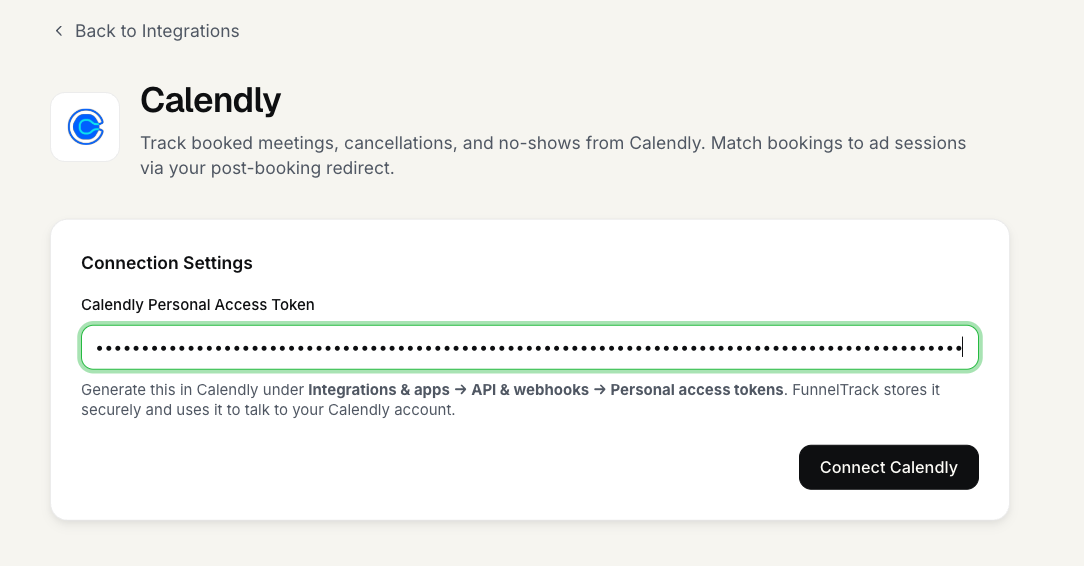
FunnelTrack uses the token to call Calendly's API and register a webhook subscription for the three booking events automatically — no copy-pasting URLs into Calendly.
Add a booking event in a connected destination
In FunnelTrack, open a connected destination's routing page — e.g. Calendly → Meta Conversions API. You'll see three template cards by default:
- •All Meetings Booked — fires on every
invitee.createdwebhook, no matter which calendar - •All Meetings Canceled — fires on every
invitee.canceledwebhook - •All Invitee No-Shows — fires on every
invitee_no_show.createdwebhook
Pick a destination event (e.g. Meta's Lead), toggle the card on, and save. That's the fastest setup.
(Optional) Build a custom per-calendar event
Click Add Event. Pick the webhook trigger (Meeting Booked / Canceled / Invitee No-Show), then click Find Event— FunnelTrack pulls the available calendars from Calendly and shows how many recent payloads we've received for each. Pick the calendar you want this card to fire on.
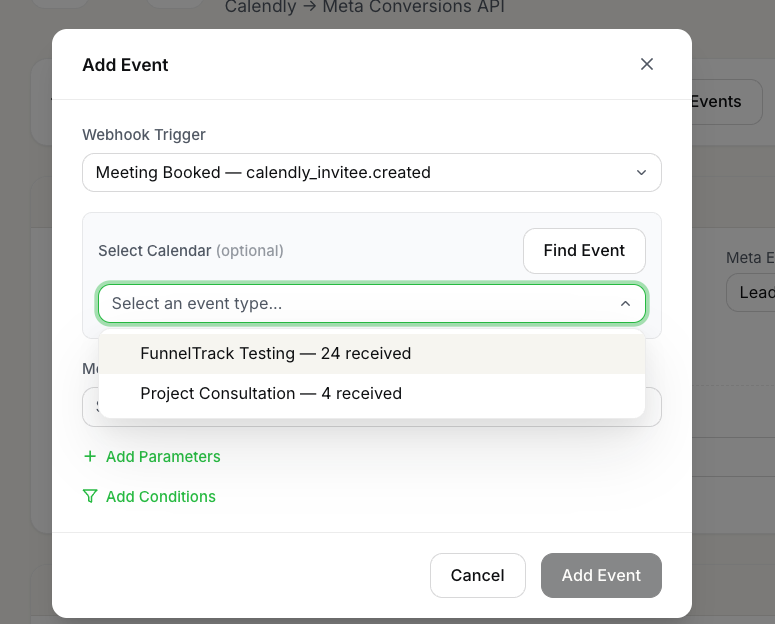
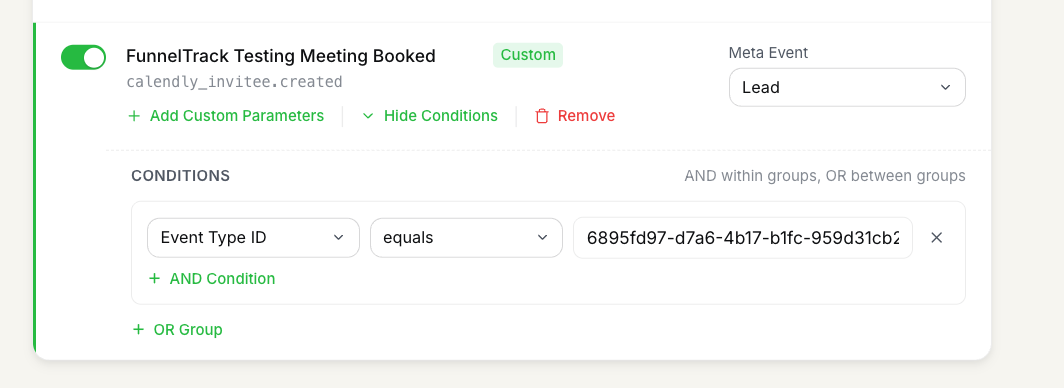
When you save, the card gets named <Calendar Name> <Trigger Label> (e.g. FunnelTrack Testing Meeting Booked) and FunnelTrack automatically attaches an Event Type ID condition so the card only fires for that specific calendar.
(Optional) Map event parameters
Click Add Custom Parameters on the card to send additional fields to the destination:
- •Event Parameters — static values you type in (e.g.
currency: USD) or dynamic values pulled from Calendly fields (e.g. host name, event type name, location type). Sent to the destination as standard or custom event parameters. - •User Data Parameters — FunnelTrack auto-captures invitee email, phone, name, and answers from the Calendly payload. Override only if the auto-detection picks the wrong field.
(Optional) Add extra conditions
The Event Type ID condition is inherited automatically. If you want to gate the dispatch further — e.g. only fire when a specific intake answer is selected, or only for invitees in a particular location — click the conditions area and add more rules. Read more about using conditions in FunnelTrack.
Test & deploy
Book a test meeting on the embedded Calendly scheduler. Within a few seconds you should see an inbound row in the usage log (labeled Meeting Booked, Meeting Canceled, or Invitee No Show), followed by one outbound row per connected destination — each labeled with the event name you set on the card (e.g. FunnelTrack Testing Meeting Booked).

Notes & best practices
A few things worth knowing once you start scaling this across multiple calendars and destinations.
- •Embed + redirect is what makes attribution work. The FunnelTrack pixel fires on the page with the Calendly embed (capturing the visitor's session and click IDs), and then again on the confirmation page (which Calendly appends booking details to). The dispatcher prefers the confirmation page URL as the destination's event source URL — if that page never fires the pixel, the dispatcher falls back to the closest page_view in time on the session.
- •Calendly webhooks fire for every calendar. Once connected, every Calendly event type on your account sends webhooks to FunnelTrack — including 1:1s and internal calendars. Use per-calendar custom events on lead-gen calendars to keep internal bookings out of your ad reporting.
- •Reschedules don't double-fire. When an invitee reschedules, Calendly fires
invitee.createdagain withrescheduled: truein the payload. FunnelTrack's reschedule guard skips dispatch on these so you don't double-count the conversion on Meta / Google. - •Disconnect / reconnect is safe.If you ever rotate your PAT or disconnect Calendly, FunnelTrack preserves the workspace's webhook key across the reconnect so existing Calendly subscriptions keep authenticating without re-registration.
Events we support
Three Calendly webhook events; each routes to its own template card per destination.
- •Meeting Booked — trigger key
calendly_invitee.created. Fires when an invitee books a meeting on any Calendly event type on your account. Maps to a lead / conversion event on most destinations. - •Meeting Canceled — trigger key
calendly_invitee.canceled. Fires when a booked meeting is canceled by either the host or invitee. Useful for tracking cancellation cohorts or feeding negative signals. - •Invitee No-Show — trigger key
calendly_invitee_no_show.created. Fires when the host marks an invitee as a no-show. Often used to qualify downstream lead-quality scoring.
Common tracking examples
A few patterns most FunnelTrack accounts run on Calendly.
- •Lead-gen calendar → Meta Lead. Build a custom per-calendar event on the one Calendly event type you use for discovery calls. The auto-attached Event Type ID condition keeps internal bookings out — only paid-funnel bookings fire as a Meta
Lead. - •All Meetings Booked → Meta + GA4 + Google Ads, broad. Enable the All Meetings Booked template card on three destinations, each pointing at a lead-style conversion. Covers every Calendly calendar without per-calendar setup — fine when every event type on your account is customer-facing.
- •No-show feedback loop to Meta Custom Audiences. Build a per-calendar Invitee No-Show event that fires as a Meta custom event. Use it as a negative signal in audience targeting or to suppress the no-show invitee from re-targeting.
FAQs
calendly.compages, so a link out to your Calendly URL means we don't see the visitor's session and can't tie the booking to an ad click. Embeds + redirect let us track end-to-end.Ready to set it up?
Jump straight into your FunnelTrack workspace and start wiring up Calendly.
Configure your Calendly integration →Need a hand?
If anything in this guide didn't match what you're seeing in Calendly or FunnelTrack, open a support ticket in your dashboard and we'll get you sorted.