
Connect Elementor Forms & set up form-submission tracking
FunnelTrack captures Elementor Forms submissions server-side via webhook and stitches them back to a visitor's ad session using the IP + user agent that Elementor sends with each submission — so every form lead you fire to Meta, Google, TikTok, and the rest carries the original click ID, identity data, and session context. The integration works with any Elementor form on any page of your WordPress site.
- •Elementor Pro installed on your WordPress site (Forms is a Pro feature)
- •Editor access to the pages that host the forms you want to track
- •The FunnelTrack pixel deployed on every page of your site — the pixel must be installed on the page hosting the form for session stitching to work
- •At least one connected destination (Meta CAPI, Google Ads, GA4, etc.)
Setup
Wire Elementor Forms to FunnelTrack, then choose how broadly you want to route submissions to each destination.
Add the FunnelTrack pixel to your site
From the Pixel section of FunnelTrack, copy your pixel snippet and deploy it on every page of your site — including landing pages, form pages, and thank-you pages.
Grab your FunnelTrack Elementor webhook URL
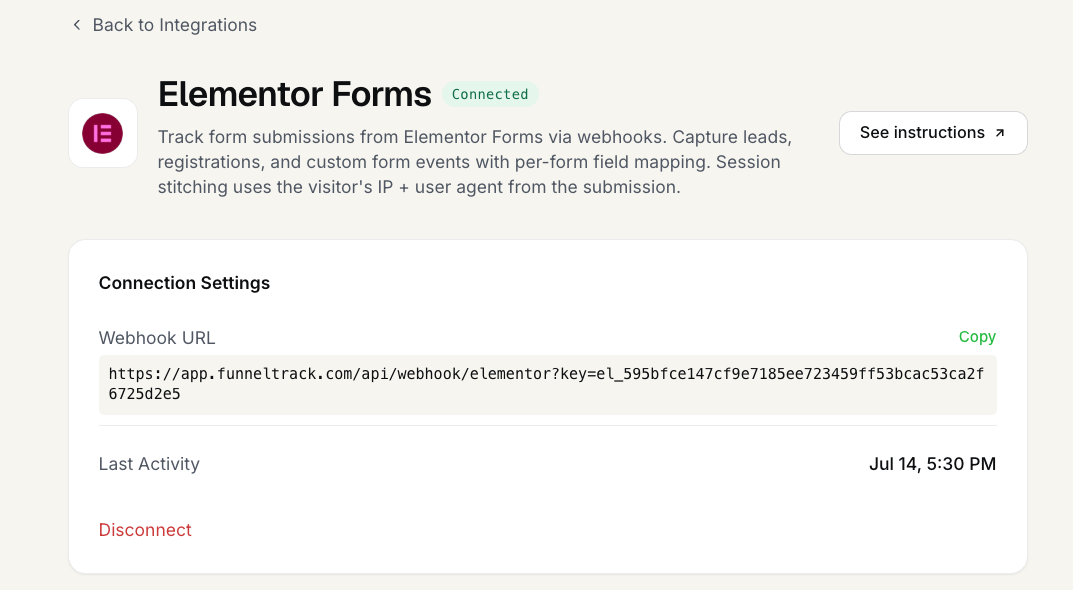
In FunnelTrack, open Integrations → Sources → Elementor Forms and copy the Webhook URL shown on the connection page. This is the single endpoint every Elementor form in your workspace will post submissions to. It looks like:
https://app.funneltrack.com/api/webhook/elementor?key=<api_key>
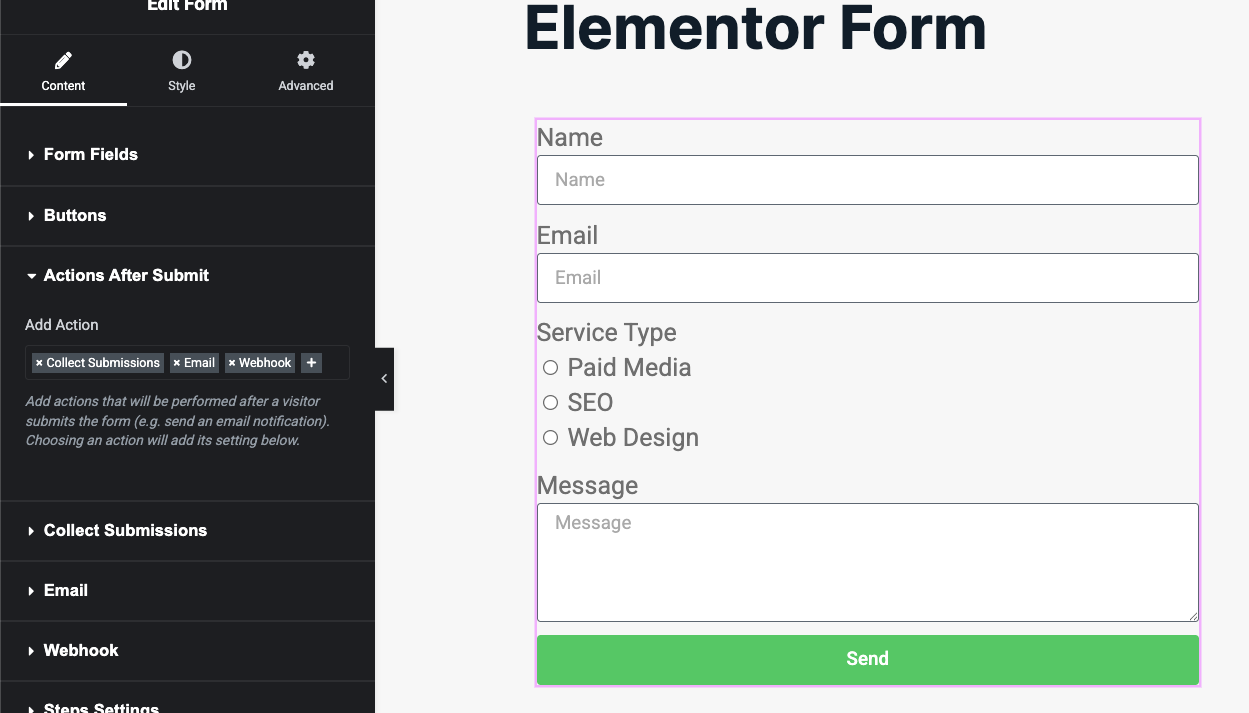
Add three Actions After Submit — Email, Collect Submissions, and Webhook
Open the page containing your form in the Elementor editor. Select the Form widget, then in the left panel open the Actions After Submit section. From the dropdown, add all three of these actions in the following order:
- Email — Elementor uses this to build the meta block (IP, User Agent, Page URL) that FunnelTrack needs. Even if you don't care about the email notification, the action must be present.
- Collect Submissions — stores each submission in your WP Admin under Elementor → Submissions. Also needed for the meta block to populate.
- Webhook — sends the submission to FunnelTrack.
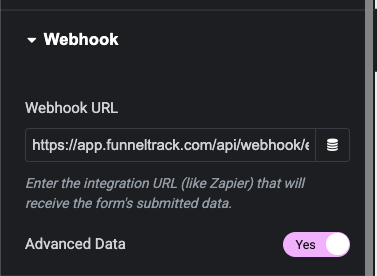
A new Webhook settings block appears further down the panel. Paste the FunnelTrack webhook URL from step 2 into the Webhook URL field, then toggle Advanced Data to ON, then Update the page.
Once the webhook is saved, submit a quick test entry on the form so FunnelTrack has a sample payload to work with in the next steps.
Add a form-submission event in a connected destination
In FunnelTrack, open a connected destination's routing page (e.g. Elementor Forms → Meta Conversions API). You'll see an All Form Submissionstemplate card already in the list — this fires for every Elementor submission in the workspace, no matter which form it came from. Pick a destination event (e.g. Meta's Lead), flip the toggle on, and save. Done.
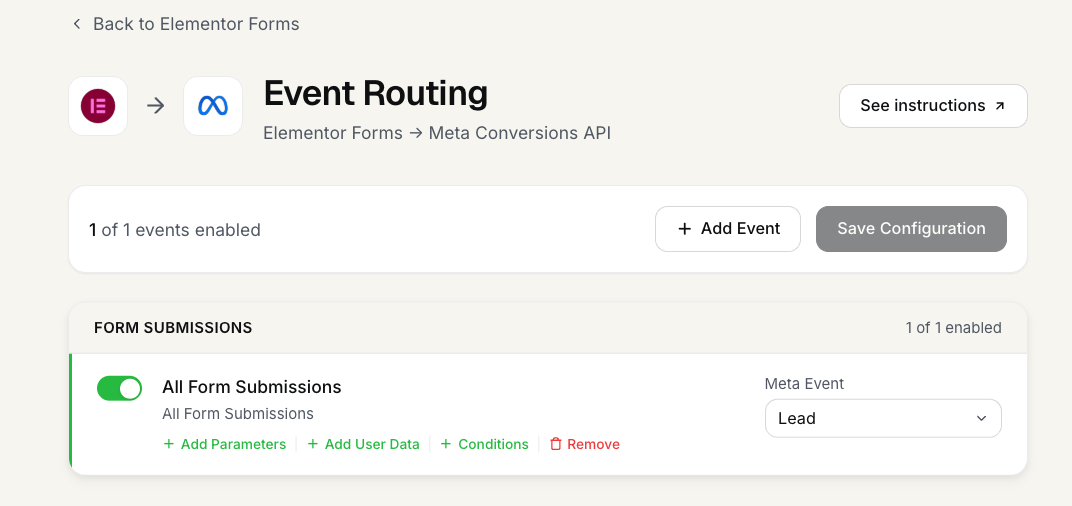
Lead, another fires Schedule) or when you want to map specific form fields into the event payload.(Optional) Build a custom per-form event
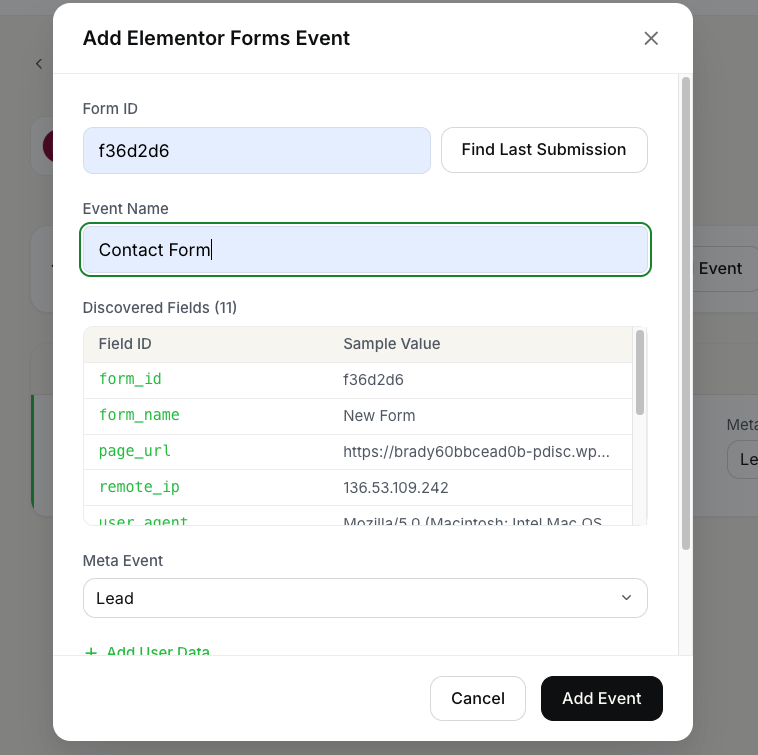
For per-form precision, click Add Event on the same destination routing page. The Add Event modal asks for a Form ID — Elementor auto-generates one for every form widget. You can find it in the Elementor editor by selecting the Form widget and looking at the Form ID field in the Form Fields or Additional Options section.
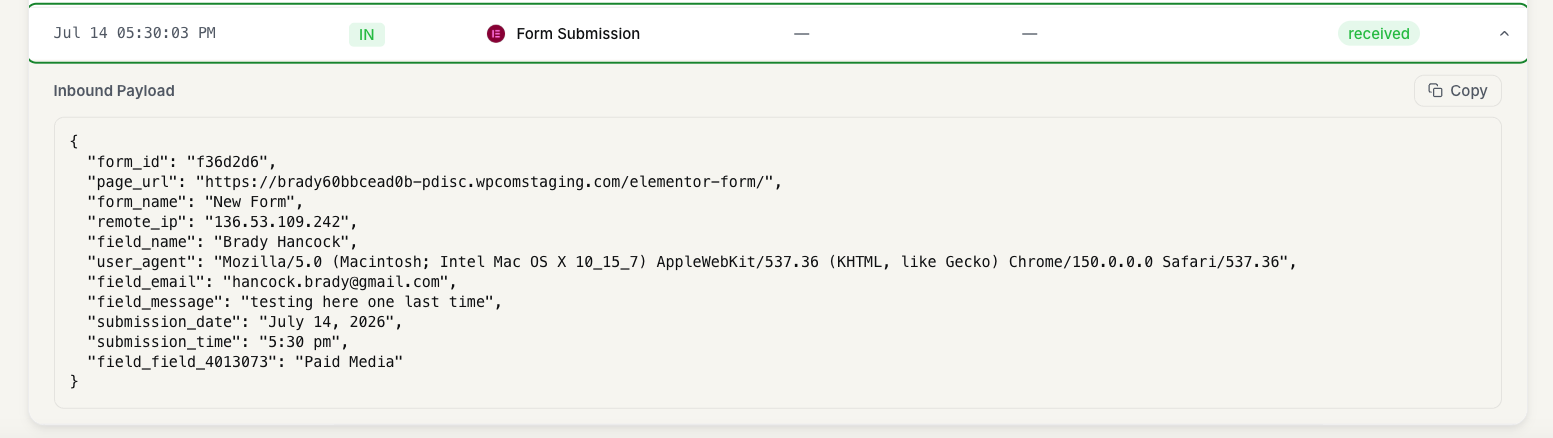
Paste the form ID into the modal and click Find Last Submission. FunnelTrack pulls the most recent submission for that form and surfaces every field it found. Elementor sends fields keyed as field_<name> (e.g. field_email, field_name, field_message). Give the event a name that'll show up on the destination's outbound usage logs, then pick a destination event below.
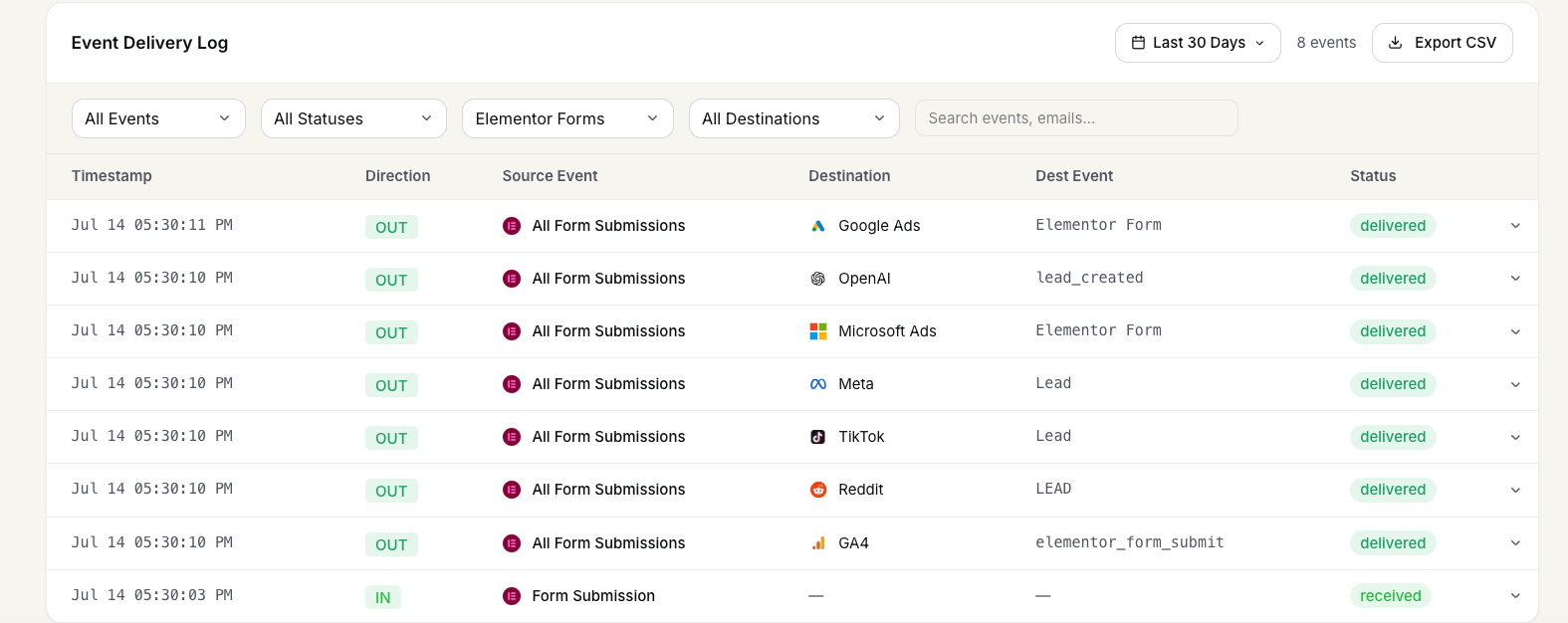
Once configured, the saved card and any incoming submission appear in FunnelTrack's inbound usage log so you can verify what Elementor sent.
(Optional) Map event parameters
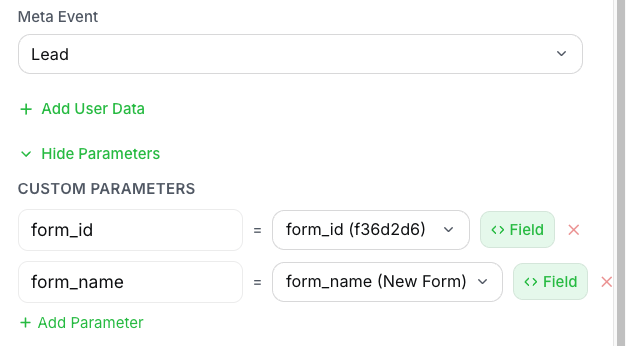
Two kinds of parameters can be mapped on the event:
- •Event Parameters — static values you type in (e.g.
currency: USD) or dynamic values pulled from form fields (e.g.form_titlepulled fromform_name). These are sent to the destination as standard or custom event parameters. - •User Data Parameters — FunnelTrack auto-captures email, phone, name, and address fields from the Elementor submission. If your form collects identity data for more than one person (e.g. a referral form with both the referrer's and referee's emails), use the User Data section to manually map which form field is the primary contact for matching.
(Optional) Set event conditions
Use the Conditions section to fire the event only when the submission matches certain criteria — for example, only count a pricing-form submission as a lead when the budget field is over $5,000, or only fire a Meta Schedule event when a specific appointment-type field is selected.
Test & deploy
Save the event card. Submit a final test entry on the form — the saved card on the routing page shows the event as configured, the inbound usage log shows the Elementor form submission, and the outbound log shows the event name you set being dispatched to the destination.
Notes & best practices
A few things worth knowing before you scale this across every Elementor form on your site.
- •One webhook URL, many forms.Your workspace has a single FunnelTrack Elementor webhook URL — use it on every form's Webhook action. Elementor sends the form ID inside the payload so FunnelTrack can route to the right event config without separate URLs per form.
- •Pixel must be on the form page.Session stitching uses an IP + user-agent fingerprint match between the Elementor submission and a pixel session on the same site. If the FunnelTrack pixel isn't installed on the page hosting the form, FunnelTrack falls back to identity backfill via email/phone and match quality drops.
- •Payload format. Elementor delivers submissions as
application/x-www-form-urlencodedwith nested bracket keys —form[id],form[name],fields[<name>][value],meta[remote_ip][value],meta[user_agent][value],meta[page_url][value]. FunnelTrack flattens these intoform_id,form_name,field_<name>,remote_ip,user_agent,page_urlfor mapping. - •All Form Submissions vs. per-form events. The All Form Submissions template is the fastest setup when every Elementor form should map to the same destination event. Build per-form events when forms differ (different destination events, different parameter mappings, or different firing conditions).
Events we support
What Elementor Forms can send to FunnelTrack out of the box.
Elementor ships one event type through the Webhook action: a form submission. FunnelTrack receives the full submission payload and discovers every field the form contains, so you can map any of them to event parameters or user data on the destination side.
There's no fixed event catalog here — each form's submission is the event, and the form ID is the discriminator FunnelTrack uses to route it to the right destination config. The All Form Submissions template is a workspace-wide catch-all that ignores form ID and matches every Elementor submission.
Common tracking examples
A few patterns most FunnelTrack accounts end up running.
- •Every Elementor form → Meta Lead, no per-form config. Enable the All Form Submissions card on Elementor Forms → Meta and pick
Lead. Every submission, every form, gets sent as a Meta Lead. Five-second setup. - •Appointment Inquiry → Meta Lead + Google Ads Lead conversion. Same form, two destinations. Add the form ID once under Elementor Forms → Meta and again under Elementor Forms → Google Ads, both naming the event
Appointment Inquiry Form. - •Pricing form with conditions → only fire if budget > $5k. Build a per-form event, then use the Conditions section to gate the dispatch behind a budget-field check so low-intent submissions don't pollute your paid-ad reporting or skew downstream bid optimization.
FAQs
Ready to set it up?
Jump straight into your FunnelTrack workspace and start wiring up your first Elementor form.
Configure your Elementor Forms integration →Need a hand?
If anything in this guide didn't match what you're seeing in Elementor or FunnelTrack, open a support ticket in your dashboard and we'll get you sorted.