Connect HighLevel & set up workflow tracking
FunnelTrack captures HighLevel form submissions, orders, appointments, opportunities, and pipeline events server-side via HighLevel Workflows — each event you want to track is a Workflow with a Webhook action pointing at FunnelTrack. We stitch every event back to the visitor's ad session through the FunnelTrack pixel, so the conversion you fire to Meta, Google, TikTok, and the rest carries the original click ID, identity data, and session context.
- •A HighLevel account with Workflow Pro enabled (or another plan that includes the Webhook workflow action)
- •Admin access to the HighLevel sub-account you're tracking
- •The FunnelTrack pixel deployed on every page of your site — plus any third-party landing pages and HighLevel funnels / websites / stores you want to track
- •At least one connected destination (Meta CAPI, Google Ads, GA4, etc.)
- •About 5 minutes per workflow you create
Setup
Deploy the FunnelTrack pixel into every HighLevel funnel / website / store, then build one workflow per event type.
Deploy the FunnelTrack pixel
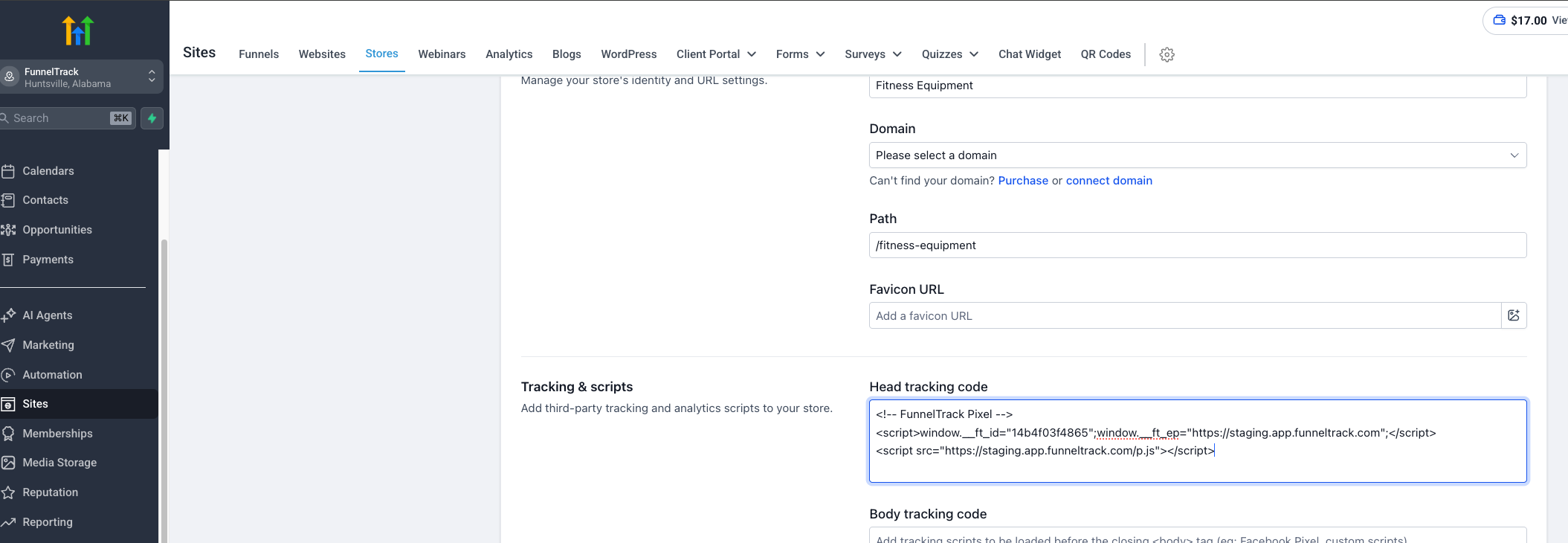
From the Pixel section of FunnelTrack, copy your pixel snippet and deploy it on every page of your site, plus any third-party landing pages that feed traffic into HighLevel.
In HighLevel, the pixel needs to be installed per asset — each funnel, website, and store separately. Open the asset and go to Settings → Tracking Code (called Head Tracking Code on some assets), paste the FunnelTrack pixel snippet, and save.
Grab your FunnelTrack HighLevel webhook URL
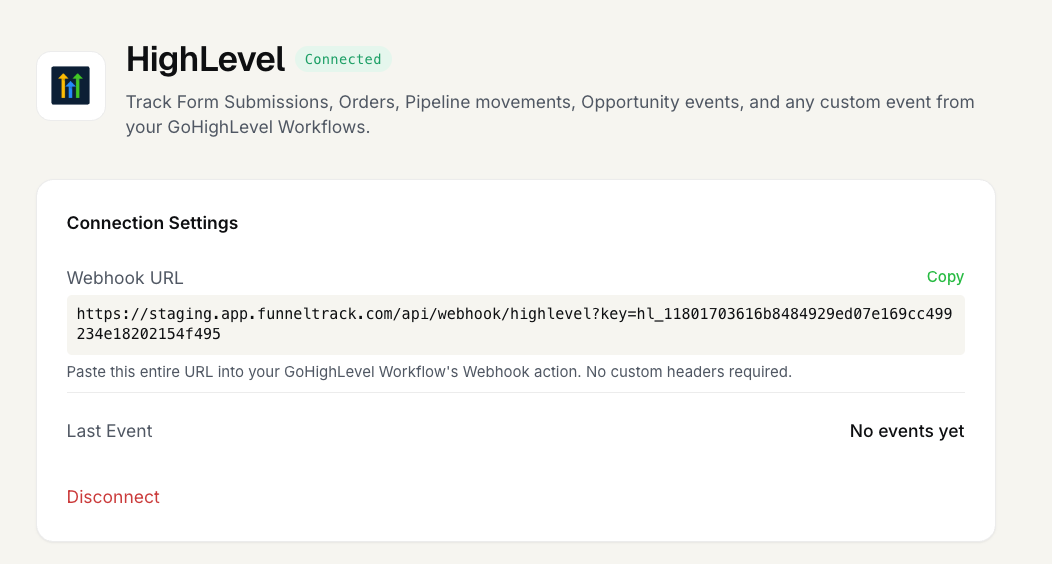
In FunnelTrack, open Integrations → Sources → HighLevel and copy the Webhook URL shown on the connection page. This is the single endpoint every HighLevel workflow will post to.
Decide which HighLevel events you want to track
FunnelTrack supports these HighLevel events out of the box. Each one gets its own workflow in HighLevel and its own template card on the destination routing page in FunnelTrack:
| Event | When it fires |
|---|---|
| Form Submission | Fires when any HighLevel form is submitted. |
| Quiz Submission | Fires when a contact completes a HighLevel lead-gen quiz. Quiz answers come through as named fields on the payload. |
| Appointment Booked | Fires when a contact books an appointment on a HighLevel calendar. |
| Contact Created | Fires when a new contact is created in the sub-account. |
| Order Submitted | Fires when a paid order completes (one-time products and subscriptions). |
| Pipeline Stage Changed | Fires when an opportunity moves to a different pipeline stage. |
| Opportunity Created | Fires when a new opportunity lands in the pipeline. |
| Opportunity Open | Fires when an opportunity is set to status = open. |
| Opportunity Won | Fires when an opportunity is set to status = won. |
| Opportunity Lost | Fires when an opportunity is set to status = lost. |
| Opportunity Abandoned | Fires when an opportunity is set to status = abandoned. |
Create a workflow for each event you want to track
In HighLevel, go to Automation → Workflows → Create Workflow for each event you want FunnelTrack to receive. Workflow construction is the same shape every time:
- Pick the triggerfor the event you're tracking. For a Form Submission event, the trigger is
Form Submitted; for an Appointment Booked event, it'sCustomer Booked Appointment; and so on. - Add a Webhook action as the next step in the workflow.
- Paste the FunnelTrack HighLevel webhook URL (from step 2) into the action's URL field.
- Add the
eventcustom data keyon the webhook action — see step 5 for the value to use. This is how FunnelTrack knows which event type each payload is (HighLevel doesn't include the event type in the payload by default). - Save and publish the workflow.
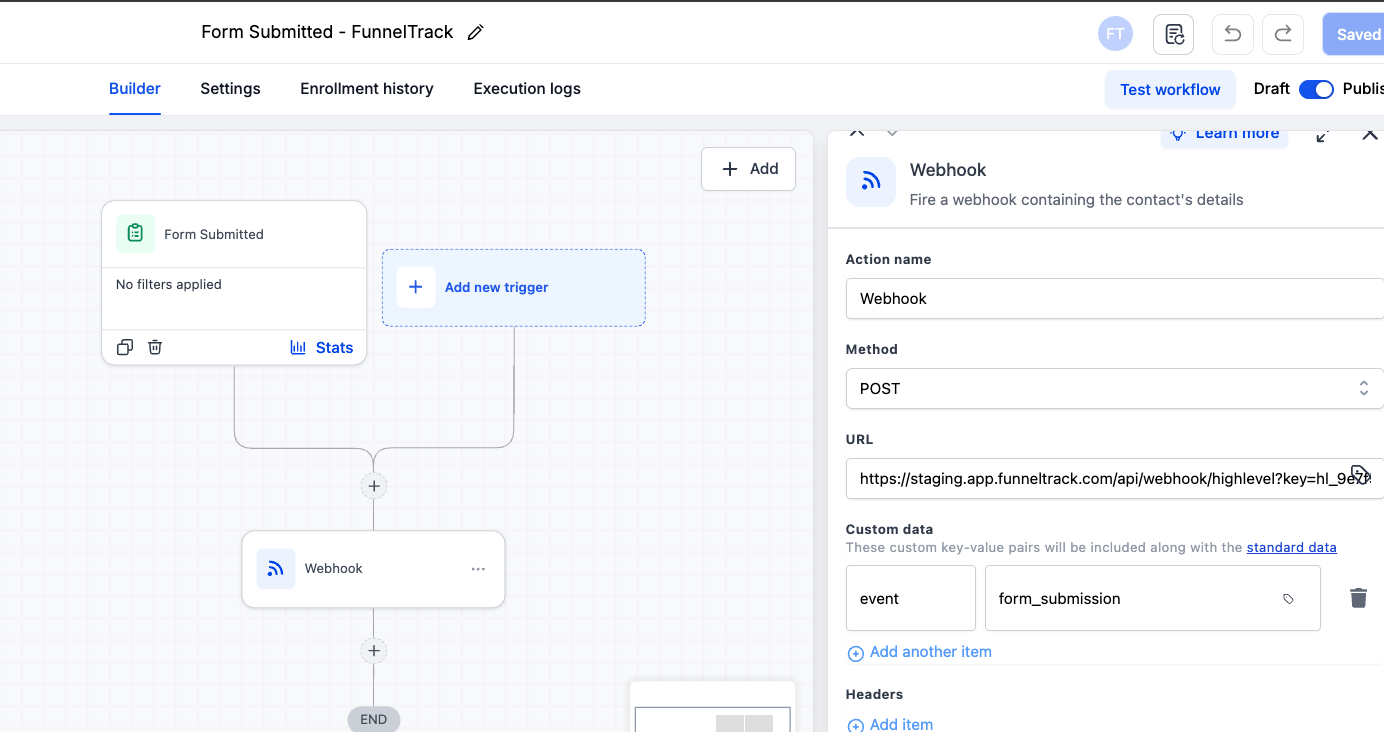
Set the customData.event value on each webhook
On each workflow's Webhook action, add a Custom Data entry with key eventand the exact value from this table. The value tells FunnelTrack which event type the payload represents — without it, the event won't match a template card on the destination side.
| Event | customData.event value |
|---|---|
| Form Submission | form_submission |
| Quiz Submission | quiz_submission |
| Appointment Booked | appointment_booked |
| Contact Created | contact_created |
| Order Submitted | order_submitted |
| Pipeline Stage Changed | pipeline_stage_change |
| Opportunity Created | opportunity_created |
| Opportunity Open | opportunity_open |
| Opportunity Won | opportunity_won |
| Opportunity Lost | opportunity_lost |
| Opportunity Abandoned | opportunity_abandoned |
form_submitted, booked_appointment, or order-submittedwill be received but won't match the template cards, so the event won't route to any destination.Enable destination events in FunnelTrack
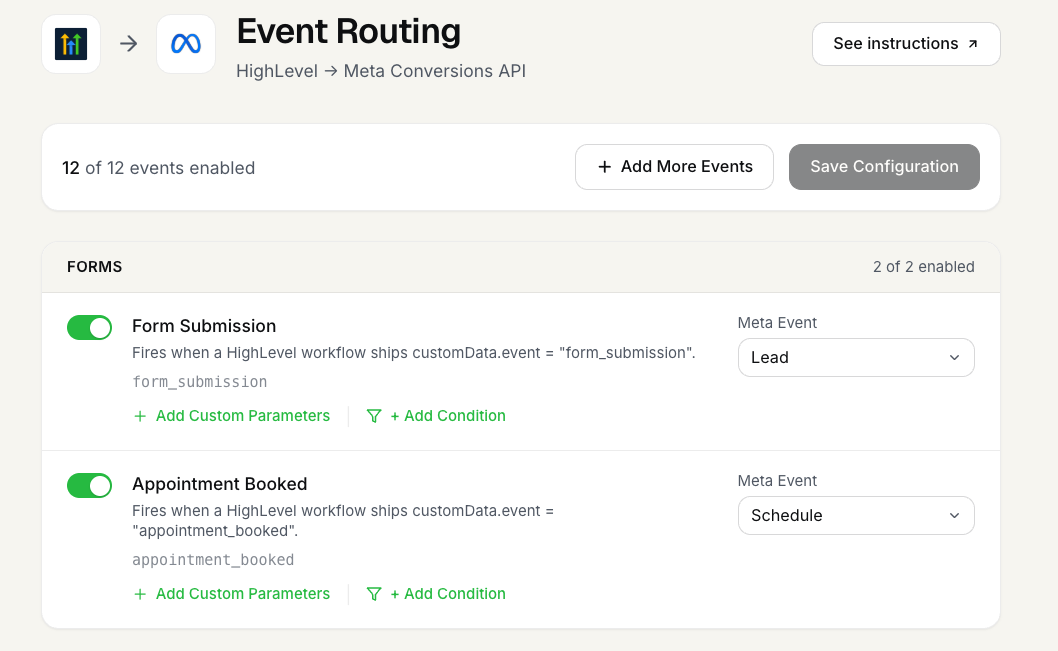
Open a connected destination's routing page — e.g. HighLevel → Meta Conversions API. You'll see one template card per supported HighLevel event, grouped into Forms, Orders, Pipeline, and Opportunity sections. Toggle on the ones you want, pick the destination event for each (Meta's Lead / Purchase, a Google Ads conversion action, etc.), and save.
You can also click Add Event to create a custom card alongside the templates — useful when you want one HighLevel event to fire as different destination events under different conditions (e.g. lead-quality scoring, funnel-specific routing). The Add Event modal includes an Event Name field so per-workflow / per-funnel cards can be named distinctly in the routing list and usage logs.
(Optional) Map event parameters
Click + Add Parameters on a card to send additional fields to the destination. Parameters can be static (you type the value) or dynamic (pulled from the HighLevel payload via the field picker). Read more about using event parameters in FunnelTrack.
Every HighLevel workflow payload carries the same envelope (contact + attribution + workflow + customData), and event-specific fields for orders / opportunities / appointments. The full set of FunnelTrack-mappable payload fields:
| Category | Payload fields |
|---|---|
| Contact | email, phone, first_name, last_name, full_name, company_name, contact_type, contact_source, country, tags |
| Attribution | attributionSource.utmSource, utmMedium, utmCampaign, utmContent, utmTerm, gclid, gbraid, wbraid, adId, adName, referrer, sessionSource, gaClientId, gaSessionId |
| Workflow / Custom Data | workflow.id, workflow.name, customData.event |
| Pipeline / Opportunity | status, lead_value, pipeline_id, pipeline_name, pipleline_stage, opportunity_name, opportunity_source |
| Order | order.total_price, order.currency_code, order.payment_gateway, order.source, order.line_items[0].title, order.line_items[0].price, order.line_items[0].quantity, order.line_items[0].product_type |
(Optional) Set firing conditions
Use the Conditions section to gate the dispatch behind one or more rules on the HighLevel payload. Read more about using conditions in FunnelTrack. A few patterns customers run a lot:
- •Workflow-scoped lead events — fire only when
workflow.name equals "Discovery Call Form"so each lead-gen workflow gets its own attribution rather than sharing one generic Form Submission event. - •Pipeline-stage milestones — fire on
Pipeline Stage Changedonly whenpipleline_stage equals "Demo Scheduled"(yes, HighLevel ships that field with the misspelling). - •High-value order split — split
Order Submittedinto two cards, one withorder.total_price > 500firing a customHighValuePurchaseevent, the other firingPurchase.
Test & deploy
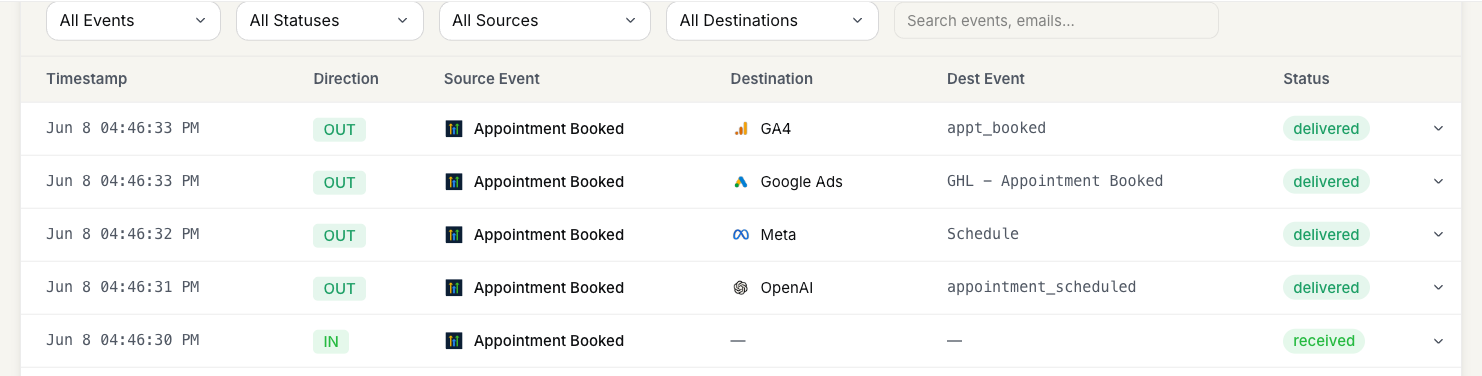
Trigger a real test on the underlying funnel / store / calendar that your workflow fires from. Within a few seconds you should see an inbound row in the usage log labeled with the HighLevel event name (e.g. Form Submission, Order Submitted), followed by one outbound row per connected destination — each delivered to the destination event you mapped to.
Notes & best practices
A few things worth knowing before you scale this across every workflow.
- •One workflow per event type. Build a separate HighLevel workflow for every event you want to track — each uses its own Trigger and its own customData.event value on the Webhook action. This is what HighLevel meters as executions, so the Workflow Pro tier you pick should reflect your expected monthly volume across all FunnelTrack workflows.
- •customData.event is the routing key.The whole integration hinges on this single value. Set it once per workflow, use the exact strings from the table in step 5, and FunnelTrack's template cards do the rest.
- •Pixel install is per-funnel / website / store. HighLevel doesn't expose a sub-account-wide head code, so each asset needs the pixel added individually under Tracking Code / Head Tracking Code. New assets need the pixel installed at launch.
- •One FunnelTrack webhook URL, every workflow. Reuse the same URL across all workflows on the sub-account — FunnelTrack uses customData.event to route each payload to the right template card.
Common tracking examples
A few patterns most FunnelTrack accounts run on HighLevel.
- •Discovery form → Meta Lead.One HighLevel workflow on the discovery form's Form Submitted trigger with
customData.event = form_submission. In FunnelTrack, the Form Submission template card on HighLevel → Meta routes it as a MetaLead. Add a Funnel-Name condition for per-funnel attribution. - •Order Submitted → Meta + Google Ads Purchase. One HighLevel workflow on Order Submitted with
customData.event = order_submitted. Two destination cards: MetaPurchaseand Google Ads purchase conversion action, both readingorder.total_priceas the value. - •Opportunity Won → Meta CompletePayment + GA4. A separate workflow on the Opportunity Status Changed → Won trigger with
customData.event = opportunity_won. Useful for high-touch sales pipelines where the winnable signal is a manual stage update, not an order form.
FAQs
eventkey is missing entirely, and the webhook is logged but unmatched if the value doesn't match any template card. Check the inbound usage log for the raw payload to see what was sent.Ready to set it up?
Jump straight into your FunnelTrack workspace and grab your HighLevel webhook URL.
Configure your HighLevel integration →Need a hand?
If anything in this guide didn't match what you're seeing in HighLevel or FunnelTrack, open a support ticket in your dashboard and we'll get you sorted.