
Connect Webflow
Track form submissionsfrom your Webflow site and fire them server-side to your ad platforms. Each submission stitches to the visitor's ad session through two hidden form fields — ft_sid and ft_uid— that the FunnelTrack injector fills before the form is sent. Contact fields (name, email, phone) are auto-detected from your form labels, so you don't have to map them.
The hidden fields are required
ft_sidhidden field. Without it, a submission can only be matched by email/phone (returning contacts) and brand-new visitors won't attribute at all. Add the hidden fields to every form you want tracked.Install the FunnelTrack pixel
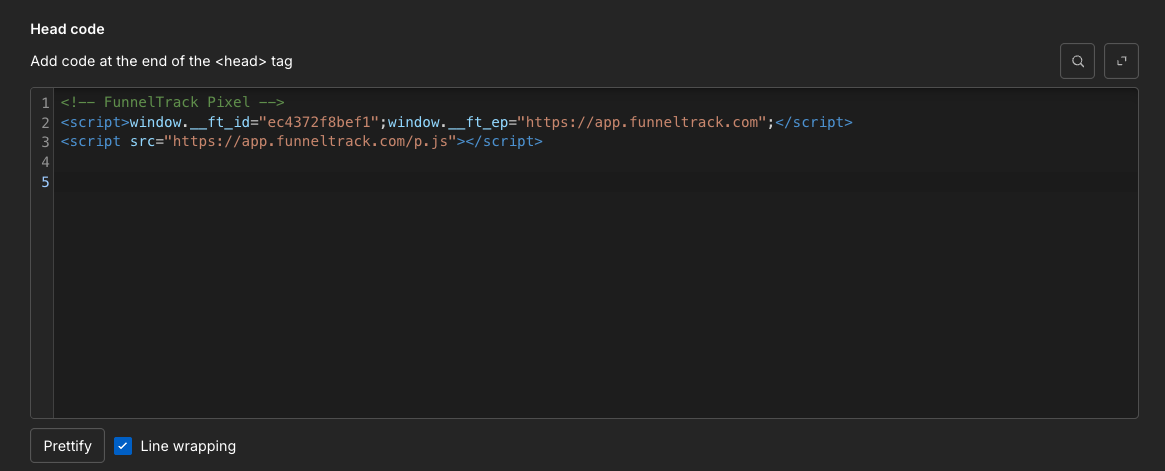
Add your FunnelTrack pixel to your Webflow site under Project Settings → Custom Code → Head Code. The pixel creates the visitor session that each form submission attributes back to.
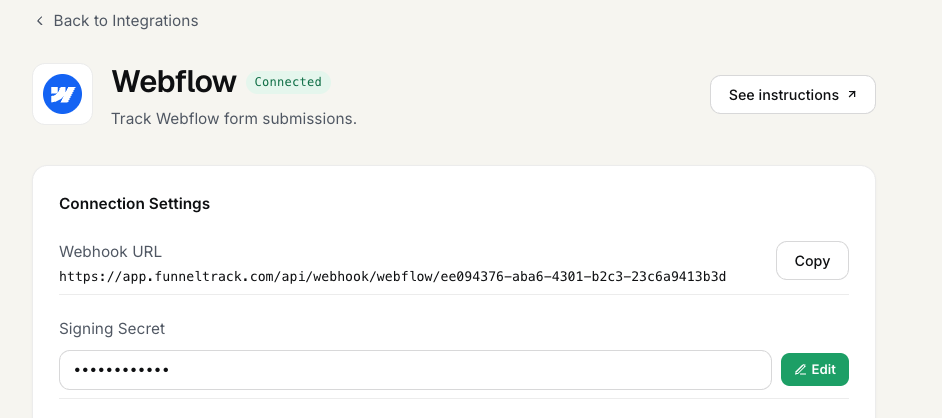
Connect Webflow in FunnelTrack & copy the webhook URL
In FunnelTrack go to Integrations → Webflow and click Connect. Copy the Webhook URLshown in the connection panel — you'll paste it into Webflow next.

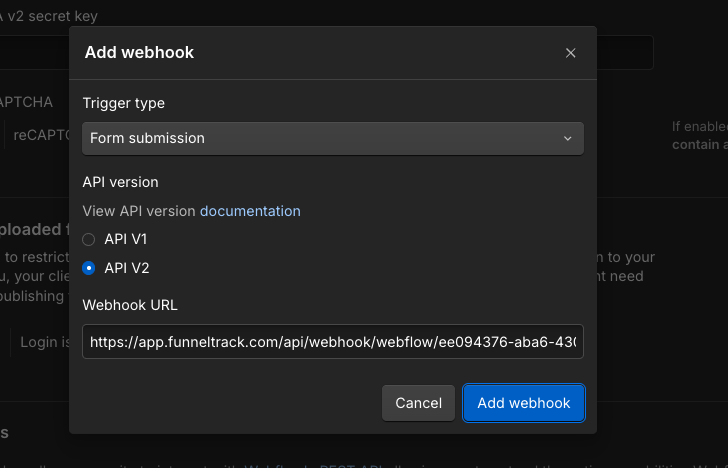
Create the form-submission webhook in Webflow
In your Webflow site settings, open Apps & Integrations → Webhooks, add a new webhook with the trigger type Form submission, and paste the FunnelTrack URL from the previous step.
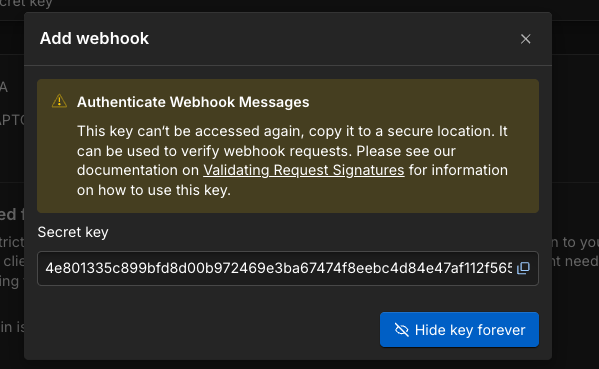
When Webflow creates the webhook it shows a signing secret. Copy it.
Paste the signing secret back into FunnelTrack
Back in the FunnelTrack Webflow connection panel, paste the secret into the Signing Secret field and click Save. FunnelTrack uses it to verify every incoming submission is genuinely from your site — submissions can't be verified until it's saved.
Add the hidden fields to your forms
In the Webflow Designer, add two hidden fields to each form — named exactly ft_sid and ft_uid. The quickest way is an Embed (Code) element inside the form containing:
<input type="hidden" class="form-item field hidden" id="ft_sid" name="ft_sid" value="">
<input type="hidden" class="form-item field hidden" id="ft_uid" name="ft_uid" value="">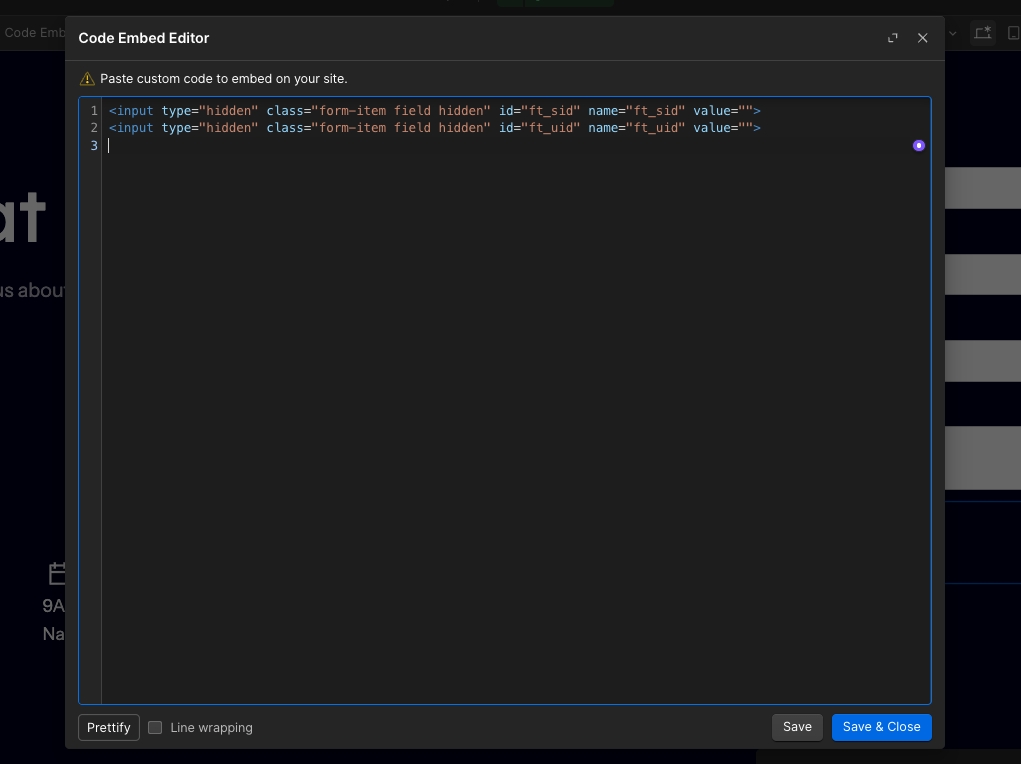
Leave the values empty — the injector fills them at submit time.
Install the injector
Add this script to your site-wide footer code (Project Settings → Custom Code → Footer). It reads the visitor's FunnelTrack IDs and writes them into the hidden fields before the form is submitted.
<script>
(function () {
  "use strict";
  var SID_SELECTOR = 'input[name="ft_sid"], input#ft_sid';
  var UID_SELECTOR = 'input[name="ft_uid"], input#ft_uid';
  function getIds() {
    var ft = window.ft || window.tracker;
    if (!ft) return { sid: "", uid: "" };
    return {
      sid: typeof ft.getSessionId === "function" ? ft.getSessionId() || "" : "",
      uid: typeof ft.getUserId === "function" ? ft.getUserId() || "" : "",
    };
  }
  function setField(el, value) {
    if (!el || !value || el.value === value) return;
    el.value = value;
    try {
      el.dispatchEvent(new Event("input", { bubbles: true }));
      el.dispatchEvent(new Event("change", { bubbles: true }));
    } catch (e) {}
  }
  function fill(sid, uid) {
    var i, f;
    if (sid) { f = document.querySelectorAll(SID_SELECTOR); for (i = 0; i < f.length; i++) setField(f[i], sid); }
    if (uid) { f = document.querySelectorAll(UID_SELECTOR); for (i = 0; i < f.length; i++) setField(f[i], uid); }
  }
  function run() {
    var v = getIds(); fill(v.sid, v.uid);
    if (typeof MutationObserver !== "undefined") {
      new MutationObserver(function () { var c = getIds(); if (c.sid || c.uid) fill(c.sid, c.uid); })
        .observe(document.body || document.documentElement, { childList: true, subtree: true });
    }
    var s = Date.now();
    (function poll() { var c = getIds(); if (c.sid || c.uid) fill(c.sid, c.uid); if (Date.now() - s < 10000) setTimeout(poll, 200); })();
    document.addEventListener("submit", function () { var c = getIds(); fill(c.sid, c.uid); }, true);
  }
  if (document.readyState === "loading") document.addEventListener("DOMContentLoaded", run); else run();
})();
</script>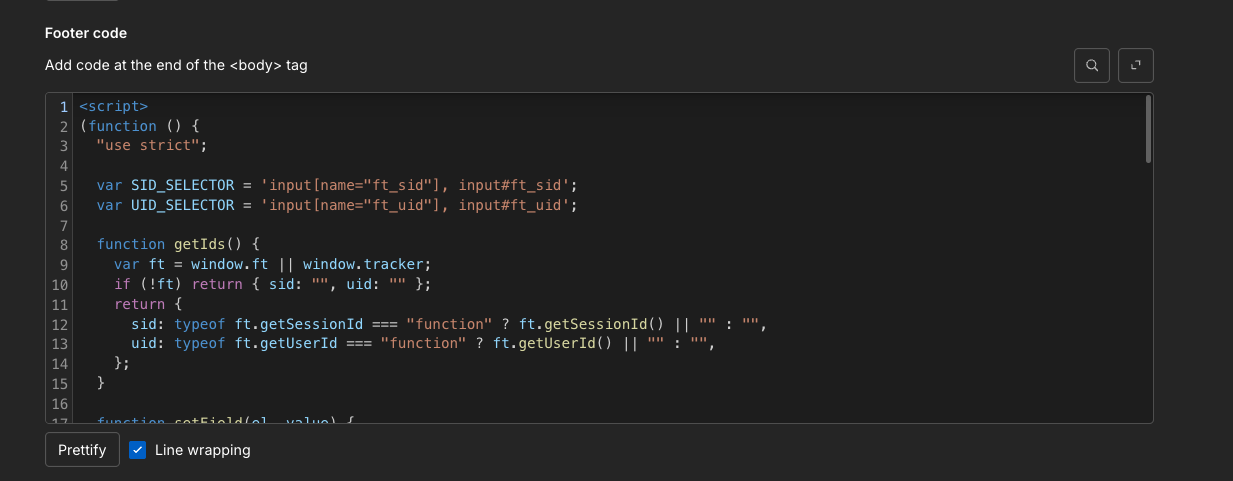
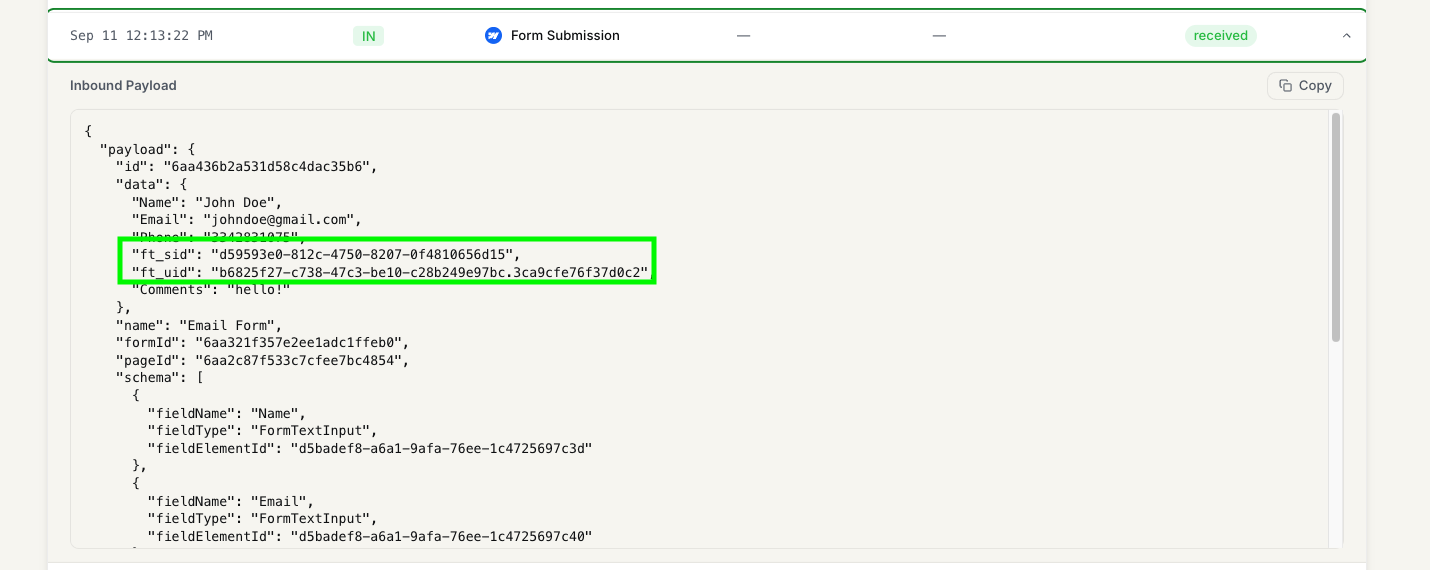
Publish the site, open a form page, and confirm the hidden fields fill with real values — in the browser inspector the ft_sid and ft_uidinputs should carry the visitor's IDs.
Enable the event & route it
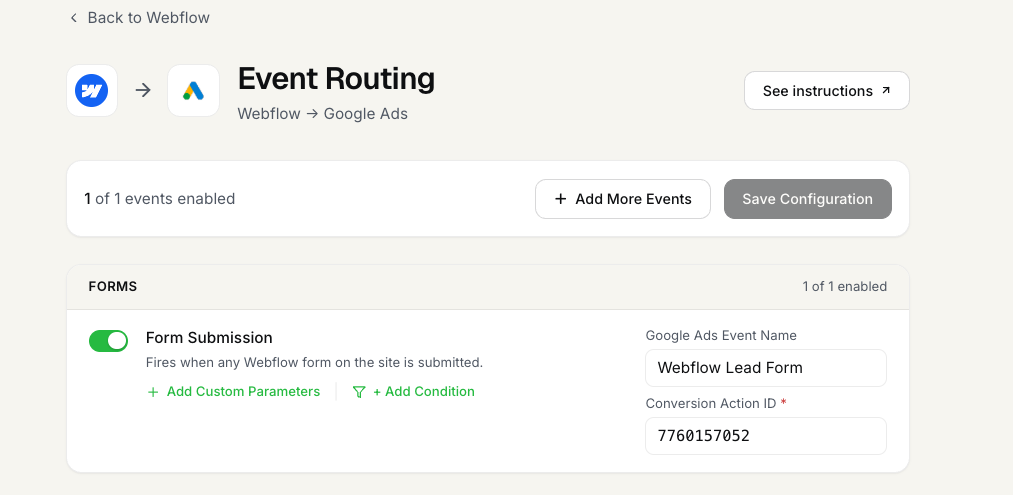
In FunnelTrack open Webflow → All Form Submissions, enable it, and choose which ad platforms should receive it. Use Find Datain the event editor to pull your form's field labels and map any extra fields — name, email, and phone are detected automatically whatever your labels are called.
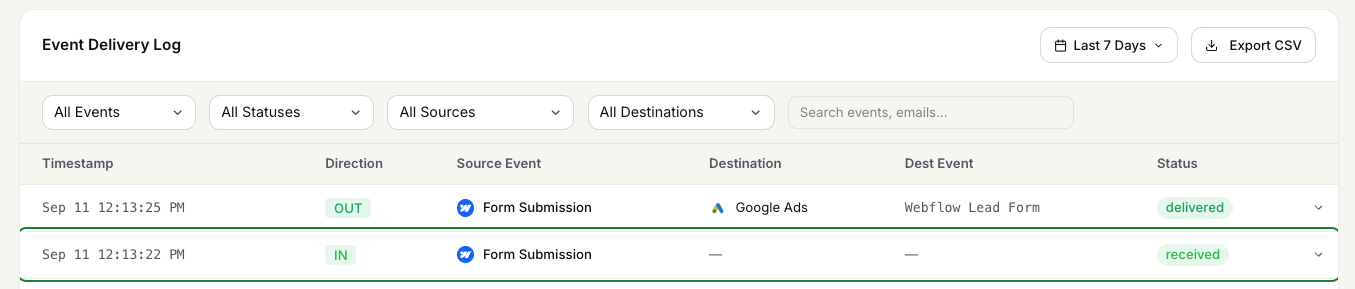
Submit a test form, then confirm the submission arrives in FunnelTrack's event log.
Need a hand? Back to Help.